Text Expressions
Text expressions allow dynamic string interpolation by embedding BizzStream expressions within text. You can include
BizzStream expressions by enclosing them in double curly braces ({{ }}).
For example, the following text expression:
price: ${{ 2 + 2 }}
resolves to:
price: $4
Where Are Text Expressions Used?
Text expressions are commonly used in the following contexts:
| Location | Purpose | Description |
|---|---|---|
| Document Definitions | Label | Dynamically sets the label for a field or line field. |
| Reference Label | Dynamically sets the value of a reference field. | |
| Email Rule | Creates a comma-separated list of recipient email addresses. | |
| Show Notification Rule | Sets the title and/or content of a notification. | |
| Send Push Notification | Sets the content of a push notification. | |
| REST Call Rule | Sets the request header for a REST API call. | |
| Go to URL Rule | Provides a dynamic URL to be opened. | |
| Confirmation Dialog Rule | Specifies the message in a confirmation dialog. | |
| Menu | Menu Block Label | Sets the label for a menu block. |
| Templates | Edit HTML | Embeds field values within an HTML template. |
| File Name | Can set a file name dynamically. | |
| Layout | Label values | Dynamically sets the value inside the label field. |
| BML values | Sets values dynamically inside BML components. |
Examples
Here are some examples of how text expressions are used. This does not show exactly for each use case the approach but, the general information to start working with the text expressions.
Menu
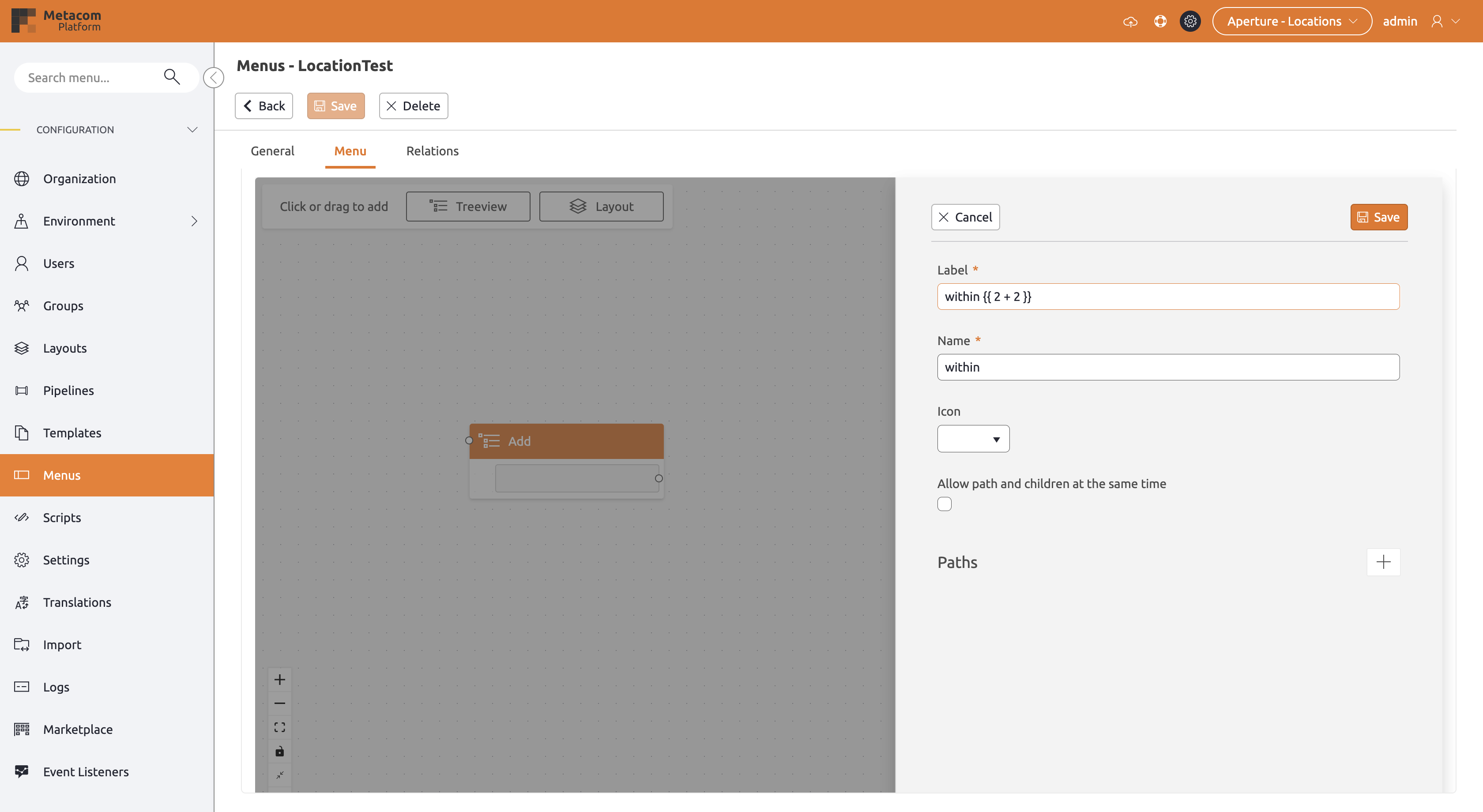
To create a menu with a text expression the following steps can be followed:
- Create a new treeview block.
- Add a label. The value for name will be automatically generated.
- Create an item within this treeview and configure a label and name again.
- Now change the label to contain a text expression as you wish.
- For this example, we will use the example from before:
2 + 2.
| After saving, we see it already in the menu editor. Now when going to the main view, we can see the navigation with the "within 4", instead of the text expression itself. | 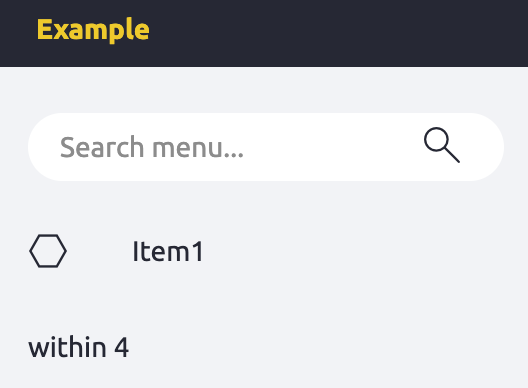 |
Using Pointers
Another more useful method is getting prices or values dynamically using pointers.
In this example we will get the name of an item using the value that the user has selected.
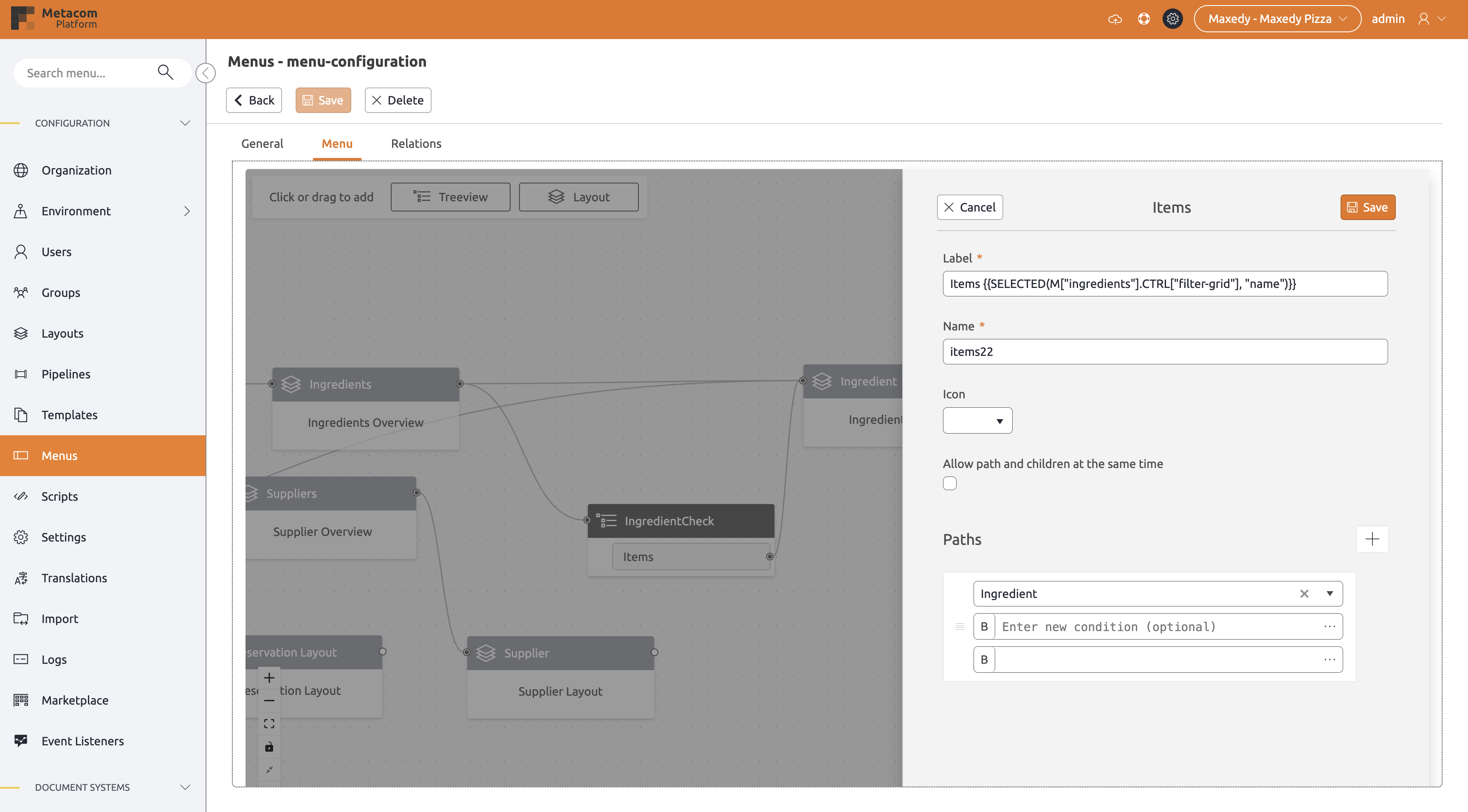
The pointer that has been added selects the name of the currently selected field.
The pointer checks first for the menu ingredients, then checks inside this menu for the grid filter-grid, and then lastly the name.
This is all nested in a SELECTED command.
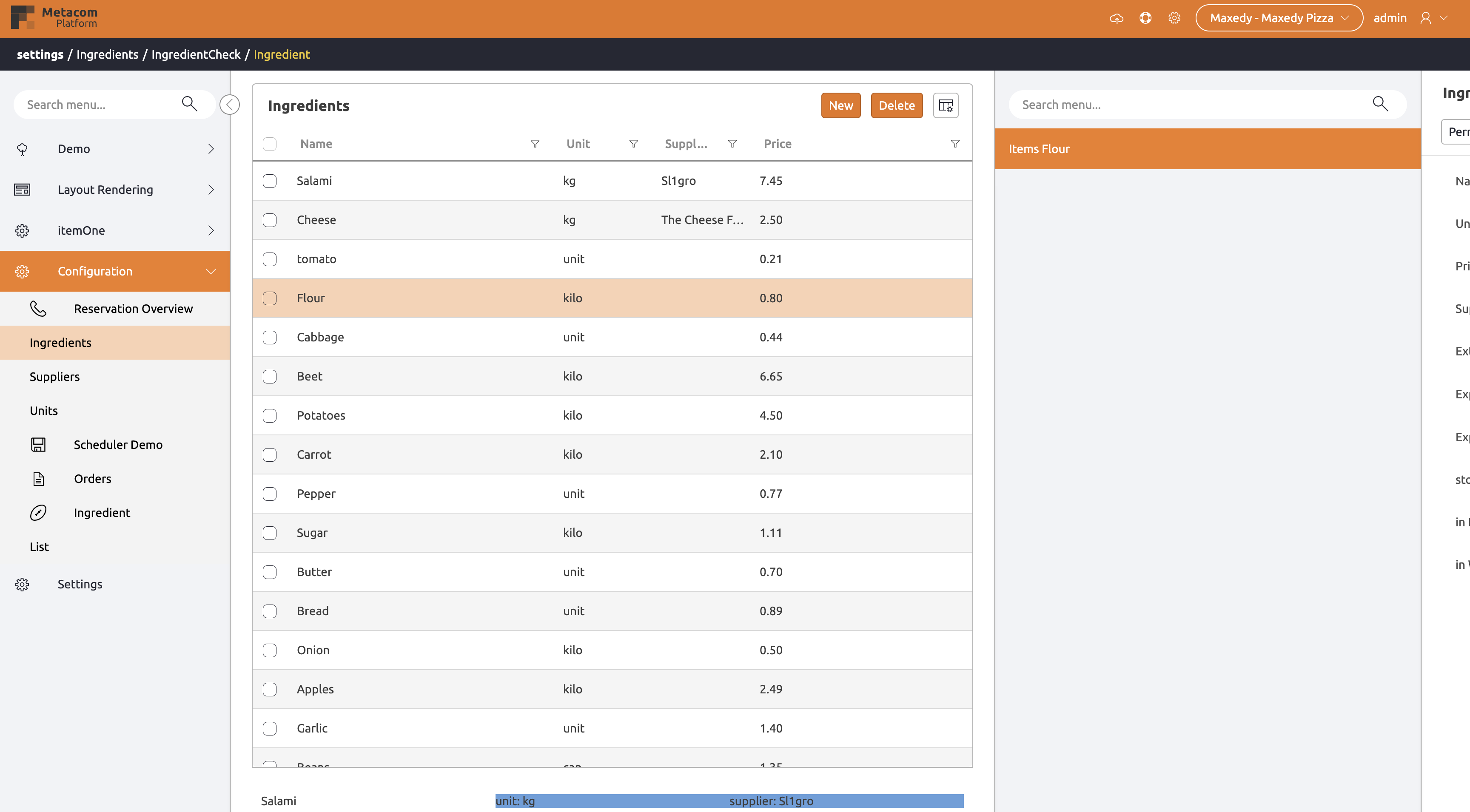
It will result in a treeview like this:
BML text expressions
The usage of text expressions in BML can be used for setting text dynamically but, also it can be used to change the styling dynamically.
Setting text
A simple example using default alignment and basic font styling with a BML text element.
<bml borderColor="#000000" borderWidth="1">
    <text fontFamily="Arial" fontSize="14" textColor="#000000">
        Hello, BML World! {{F['name']}}.
    </text>
</bml>
Output:
Changing BML style
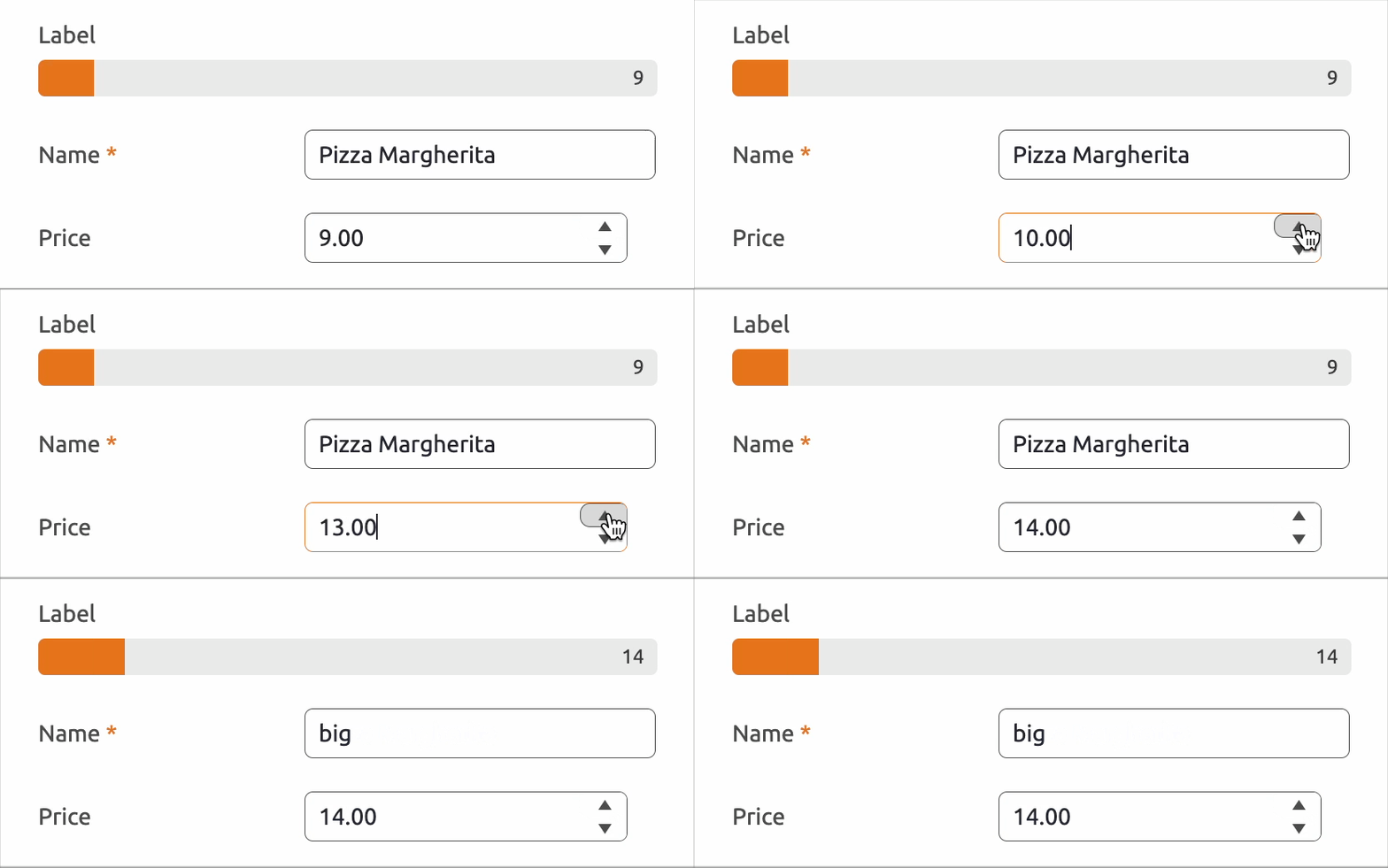
Change the value of a progressbar using the value selected by the user.
<bml>
  <progress value="{{F['price']}}"/>
</bml>
Output:
Reference fields
When making a reference field, the key part is to set the correct value. Most common value is setting the name of the reference field.
In this example we will get the names and display this using the reference field:

Output:
